Getting started
This section gets you from install to the first useful bit of work.
The main thing to know up front is that Sentinel gets more useful once it is pointed at a real local repo. You can open the app before that, of course, but a lot of the product is built around a workspace that actually means something on disk. The first useful setup is usually pretty short: install dependencies, launch the app, add a workspace for a real project, and start a thread inside it.
If you want the short route, read Install and run, then Quickstart, then First workspace and thread. That is enough for most people.
The first launch flow is not complicated. You add or select a workspace, start a draft thread, pick an engine and model, choose chat mode or plan mode, and send the first message. After that, the draft becomes a real thread and the rest of the app starts to matter.
You do not need to understand every screen on day one. It is enough to know that / opens into the draft-thread flow, /thread/[threadId] is the main thread screen, /settings/* is where provider and runtime setup lives, and the other areas like automations or skills can wait until you have real work running.
Move around quickly
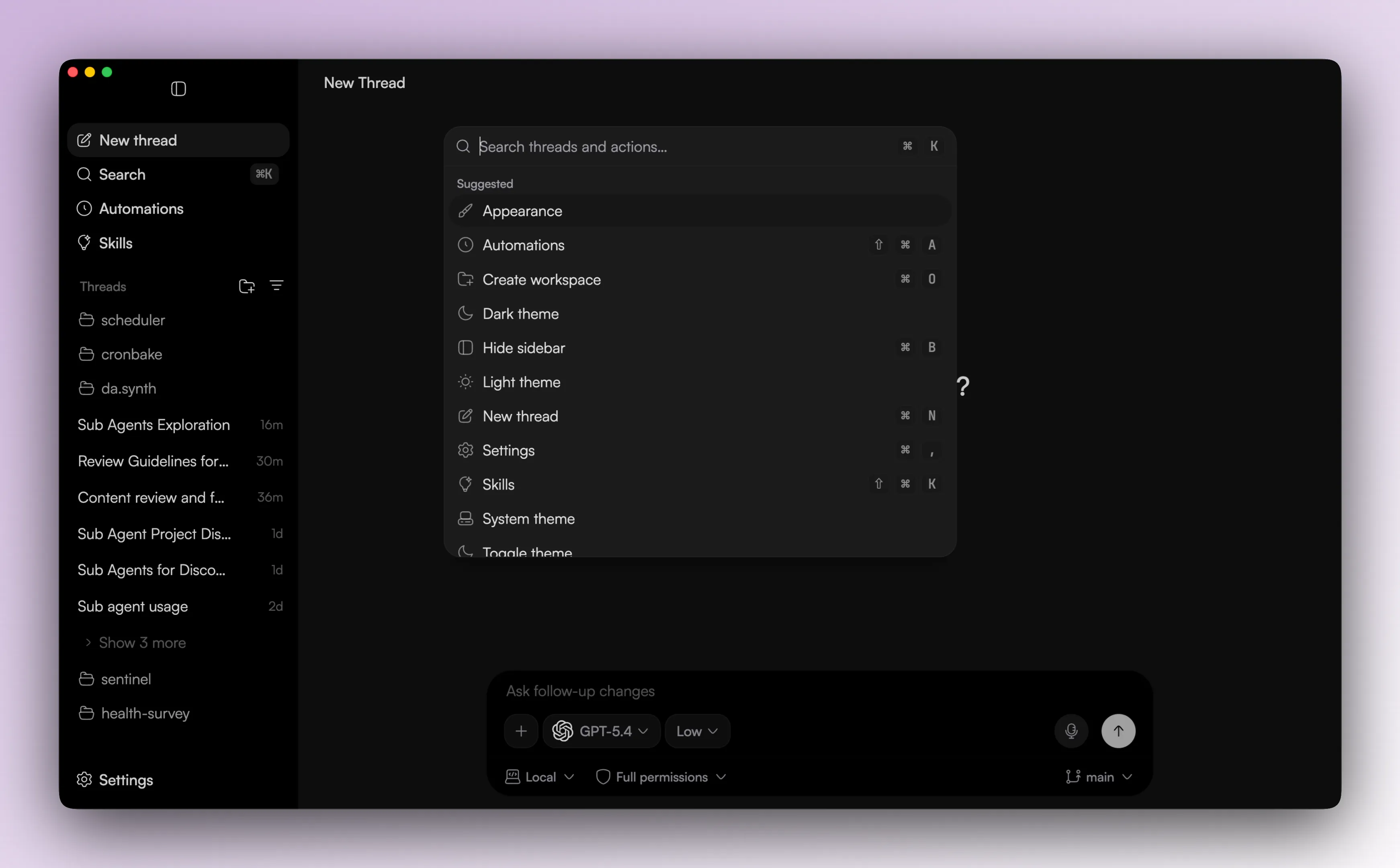
The sidebar command palette is the fastest way to jump between threads, workspaces, and settings once the app starts filling up.
Once you are through setup, the next useful pages are usually Workspaces and threads, Chat and plan mode, and Providers and models.